
FAQ - REMOTE APP - PICTURES
Home | Frequently Asked Questions | Remote App | Add Photos
Add pictures
Where are the pictures that are sent to the player?
You can find the photos you send to a player via the Remote App in the player as follows:
- Go to Menu > Photos/Movie > Set up video screen > Load photo/video playlist
- Then select the photos/videos folder from the list.
- The photos you've sent are stored in the folder named after your smartphone (e.g., "Piet's iPhone").
Can you also crop a photo before sending it to the player?
Yes, you can crop photos first. Take a photo or select one from the photo library. You can now crop the photo to a standard size. Drag one of the four white corners of the cropping frame to adjust the frame. Drag the photo to position the part of the photo you want to use within the cropping frame.
 If the photo format icon in the lower-right corner of the menu is blue, the aspect ratio of the frame is locked. When you tap the icon, its color changes to white, and you can drag the frame to any size you want using one of the four white corners.
If the frame is higher than it is wide, the photo will be sent to the player in portrait format. There will be black bars on the left and right of the photo.
If the frame is wider than it is high, the picture will be sent to the player in "landscape" format. If the picture is too narrow for the 16:9 ratio, there will be black bars above and below the picture.
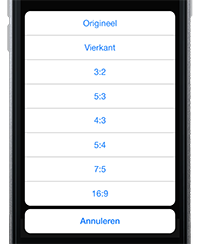 To get the best result—a photo in a 16:9 aspect ratio (full frame)—follow these steps:
- Select or take a photo
- In the menu, press the photo format icon to unlock the frame ratio
- Drag one of the four white corners of the cropping frame to set it to “landscape” orientation
- In the menu, press the photo format icon again.
- A pop-up appears that includes, among other things, the 16:9 option
- Press 16:9 to crop the photo to a 16:9 ratio
- Drag the photo to select the area you want to show within the cropping frame
- Press "done" in the menu
 A pop-up will then appear asking if you want to upload the photo to the player. Tap “Yes.” Another pop-up will then appear asking if you want to add the photo directly to the photo playlist. Select “Yes” or “Not now.”
Do you have a question?
Start your search here:

