
FAQ – TECHNICAL ISSUES
Home | Frequently Asked Questions | Technical Issues
Technical Problems
What if I can't get it to work?
What if my PC or laptop breaks down?
You can install the software right away on a new or different Windows PC, laptop, or tablet and simply log in using your credentials.
If you no longer have the BCM Stream software, log in to the BCM Store website using the person icon and your login credentials. Click the icon again and go to“My Account.” Download the software using the link in the dashboard.

Where can I download the BCM Stream software again?
Would you like to download the BCM Stream software again? If so, log in to the BCM Store website using the person icon and your login credentials. Click the icon again and go to“My Account.” Download the software using the link on the dashboard.
The playlist does not continue playing automatically and stops
Problem:
The playlist does not play continuously and pauses between songs. If you play a song directly from the search list, it loads slowly or not at all.
Solution:
This is likely due to an internet connection that isn't working properly. Resetting your internet modem may resolve this issue.
If the problem persists, please contact your internet service provider.
No sound from the BCM Stream when streaming to a Bluetooth device
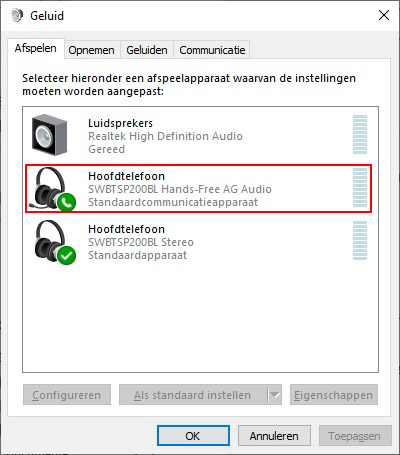 If you don't have any sound when playing audio on Bluetooth devices, you can fix this as follows:
- Press the Windows key + R to open the Run window
- Type “mmsys.cpl” and click“OK”
- The Windows Sound panel will open
- Once the Bluetooth device is connected, two devices will appear; they are named “Headphones (Default Communication Device)” and “Headphones (Default Device)”
- Right-click “Headphones (Default Communication Device)” and select “Disable”
- If you still don't have any sound after the previous step, select the correct device in the BCM Stream player menu under "Settings > Sound Card."

Do you have a question?
Start your search here:

